

For details about refunding an order in Shopify, refer to the Shopify Native Refund section.
Overview
Users with Merchant CS Admin permissions can create refunds. Global‑e monitors and rectifies all refunds that failed or are in pending status.Issuing a Refund
To refund an order:- From the Global‑e Merchant Admin, go to Orders**> View Orders**.
- Find the relevant order (enter the order information and click Find and View) and open it.
- Make sure the order is in Dispatched Status.
-
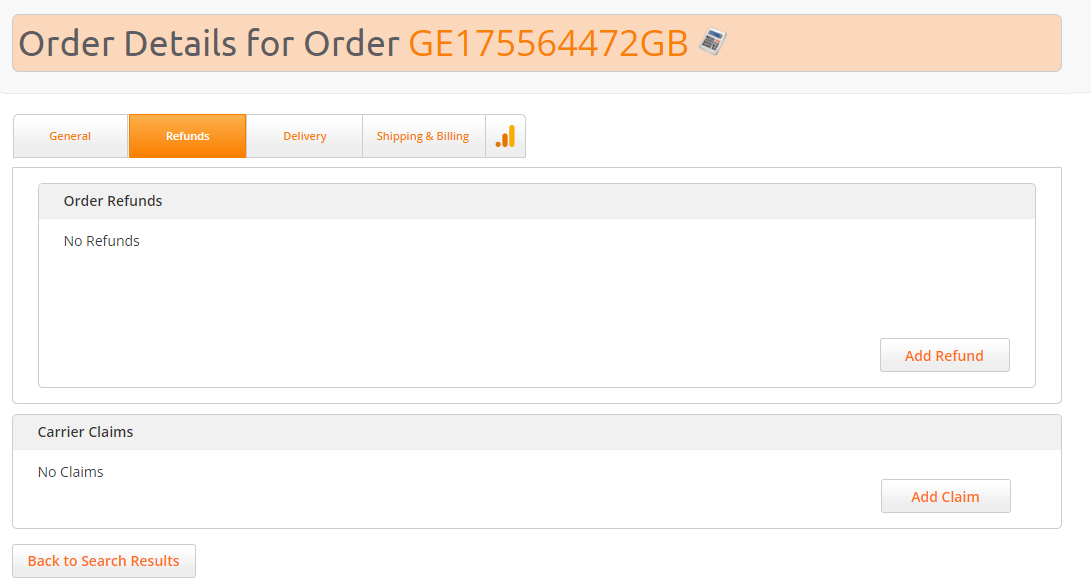
On the Order Details screen, click the Refunds tab.
-
Click Add Refund.
The Refunds screen opens.
The following information is displayed:
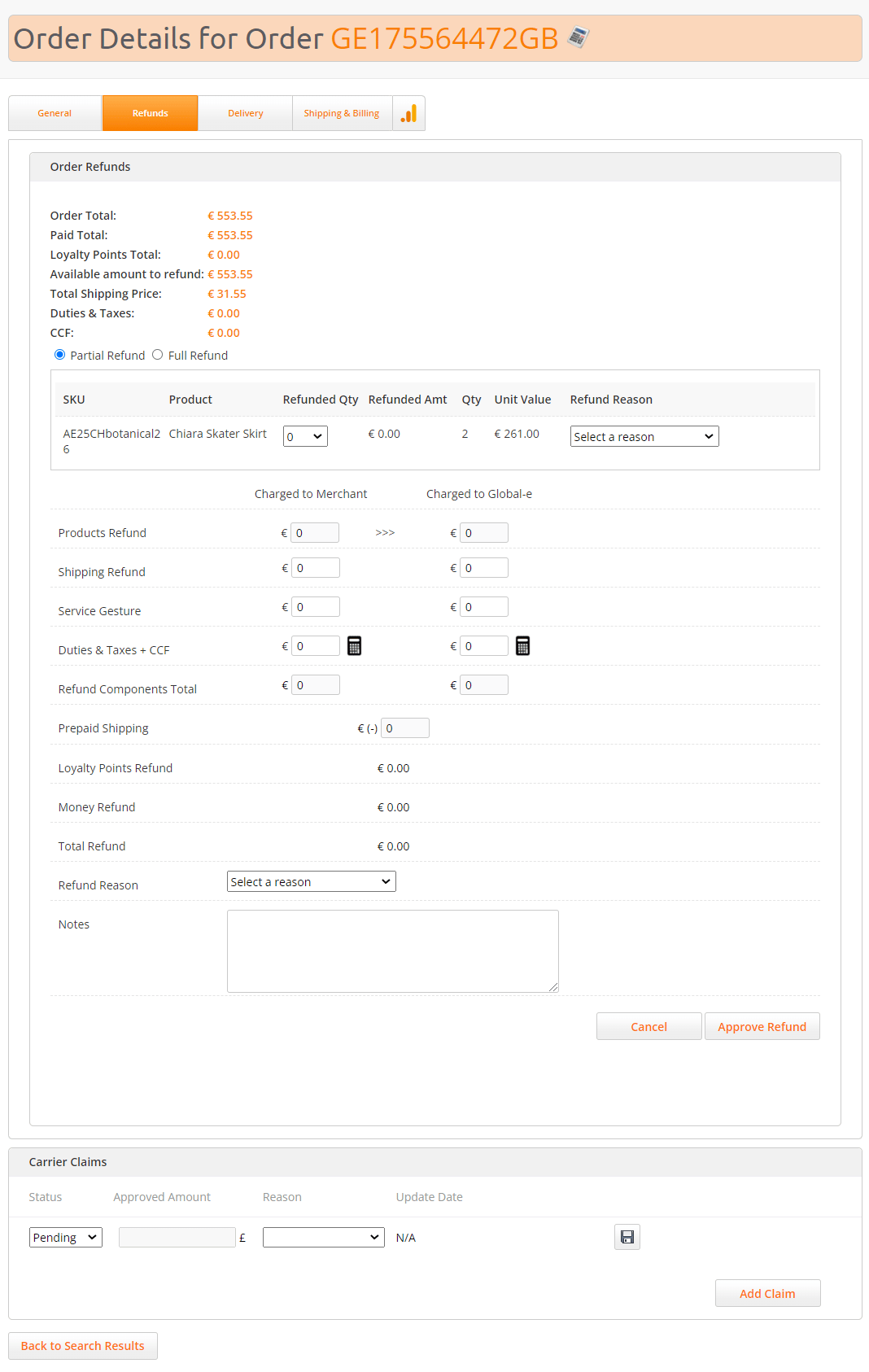
- Select the type of refund: Full Refund or Partial Refund.
- Click Approve Refund.