

Searching users
-
Navigate to System > Users.
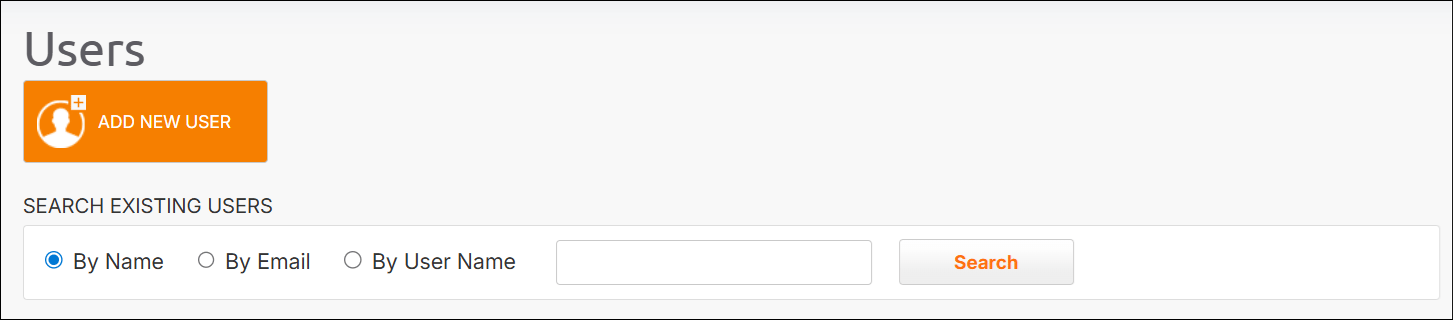
- Select By Name, By Email, or By User Name and type text in the search field.
- Click Search. The search results are displayed in the bottom region of the page.
Adding users
- Navigate to System > Users.
- Click Add New User.
-
Define the following:
- First name
- Last name
- Phone number
-
Assign a user role or roles. For what each role can access, see Global-e Roles and Features.
Some roles, such as Merchant Admin and Merchant CS, require you to select at least one merchant.
Editing users
The following users can edit existing users:- Global admins
- Merchant, CS, and Hub admins with adequate permissions for the specific feature.
- Find the user. See Searching users.
- Click Edit User at the end of the row. The Edit User screen is displayed.
-
Edit the fields as required, including:
- Personal information
- Add, remove, or change roles as required
- Click Reset Password to reset your password
- Click Save.