> ## Documentation Index
> Fetch the complete documentation index at: https://docs-pro.global-e.com/llms.txt
> Use this file to discover all available pages before exploring further.
# Installation
## Install the Global‑e Module
Follow one of the methods below to install the Global-e module for Shopware.
**Method 1. Install the module from the server**
1. Install the source code.
1. Get the installation zip file, GlobalEShopware6-x.x.x.zip, from Global-e.
2. Extract the zip file to custom/plugins/directory.
2. Enable the Plugin.
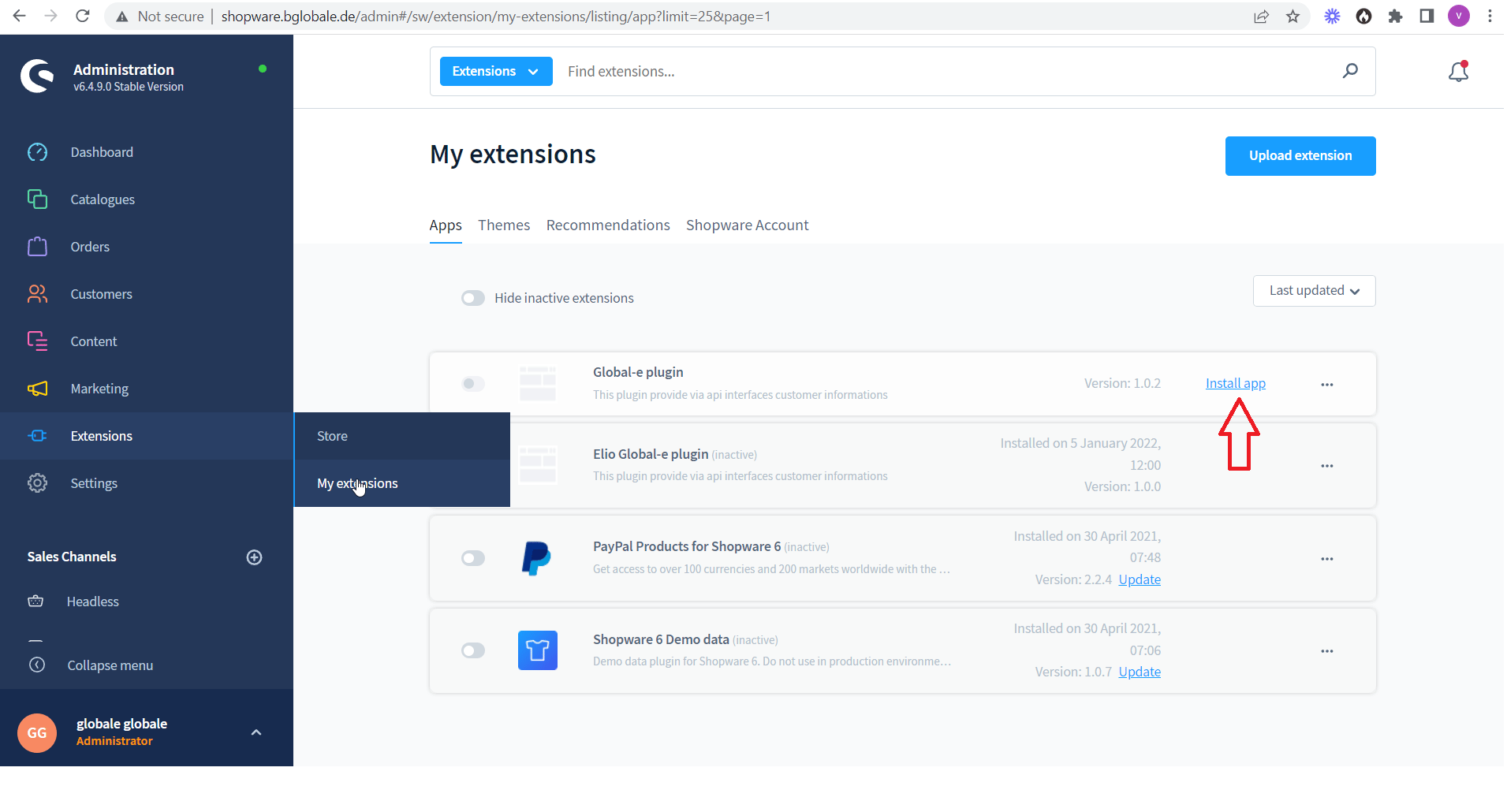
1. Go to **Extensions → My extensions**
2. Click **Install app**.
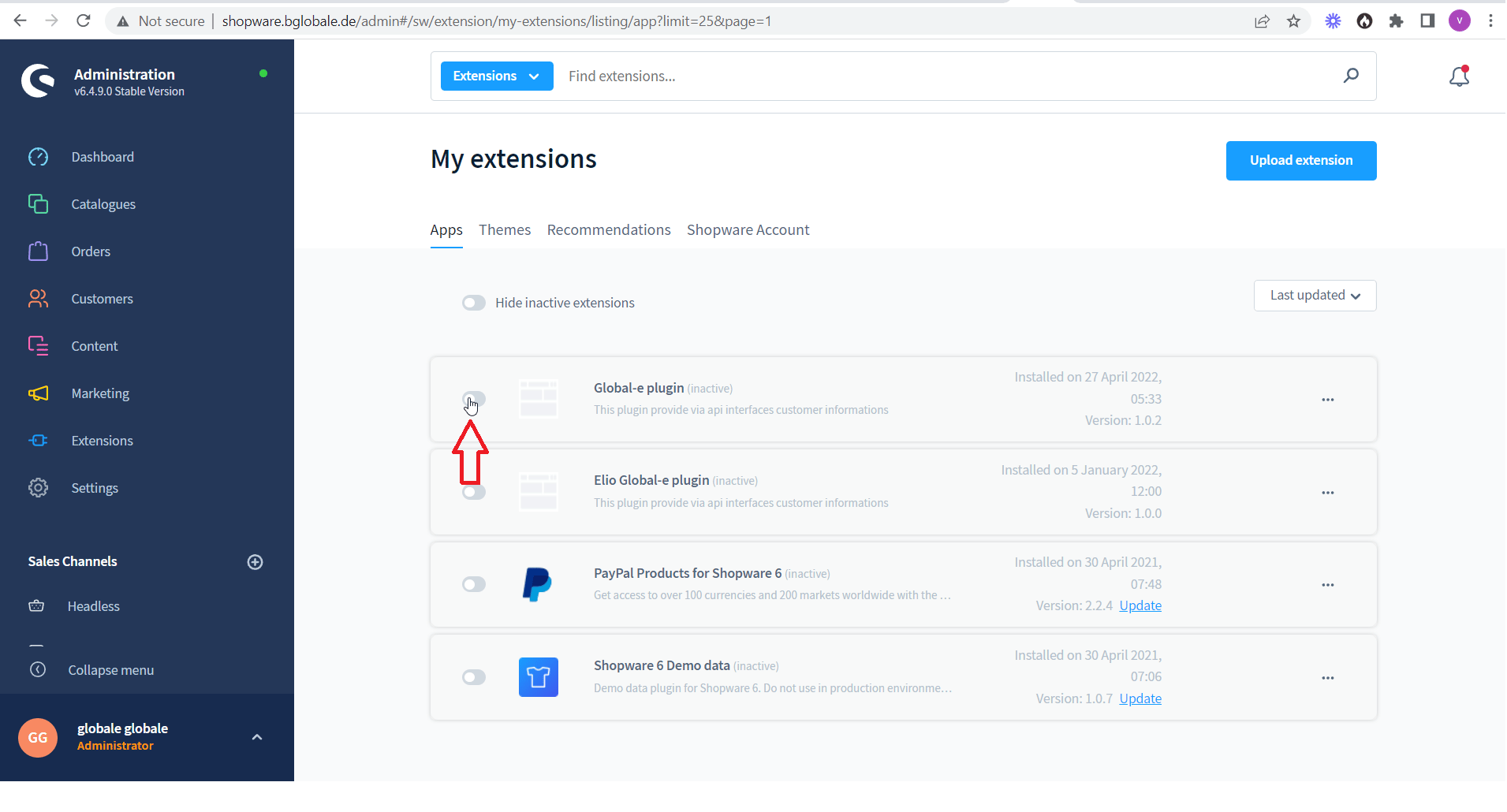
 3. Enable the Global-e plugin.
 3. Configure the plugin:
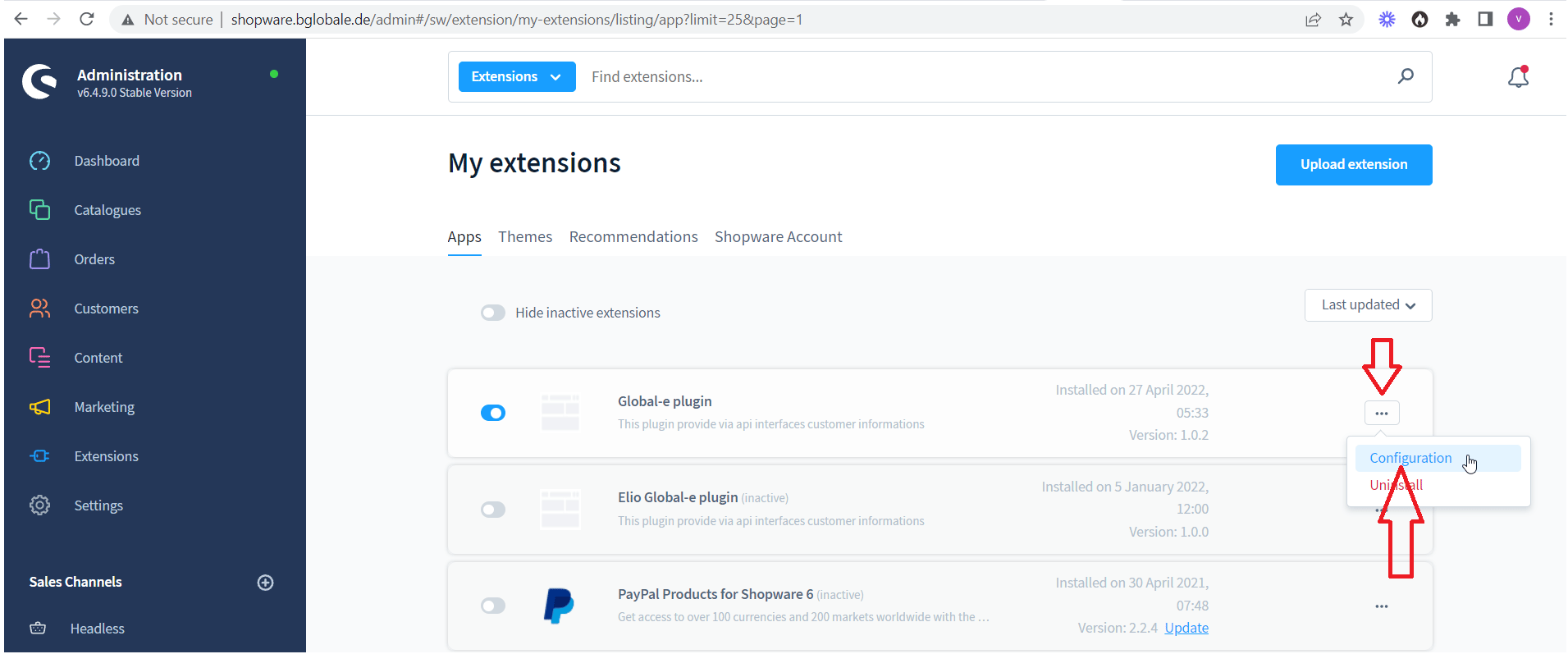
1. To the right of the Global-e plugin click the three dots → **Configuration**
3. Configure the plugin:
1. To the right of the Global-e plugin click the three dots → **Configuration**
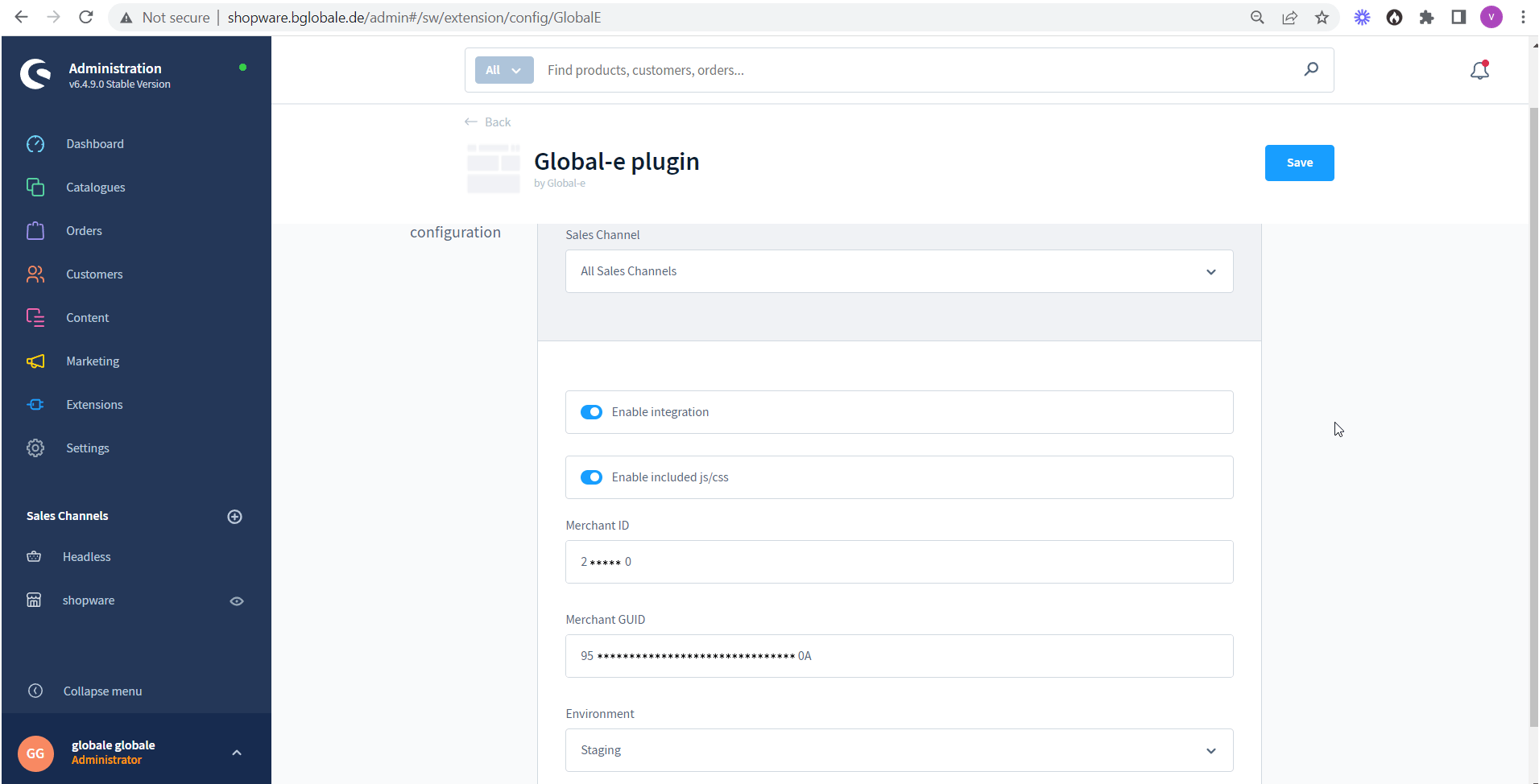
 2. Set the merchant configuration values.
 **Method 2. Upload the module's zip file to Shopware admin**
1. Go to **Extensions → My extensions**.
2. Click **Upload extensions** and select the zip file.
**Method 2. Upload the module's zip file to Shopware admin**
1. Go to **Extensions → My extensions**.
2. Click **Upload extensions** and select the zip file.
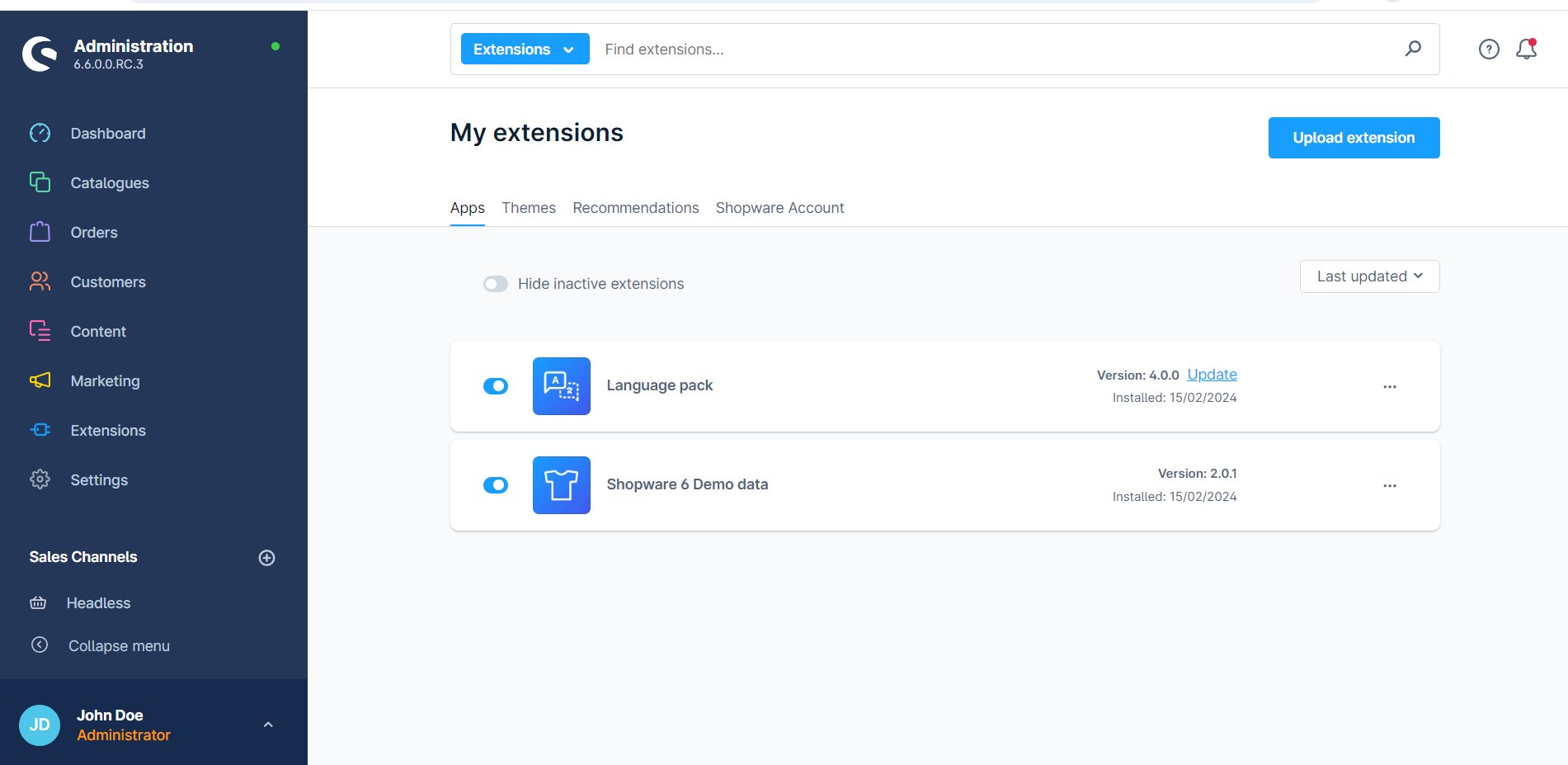 The Global-e plugin is added to the My Extensions page.
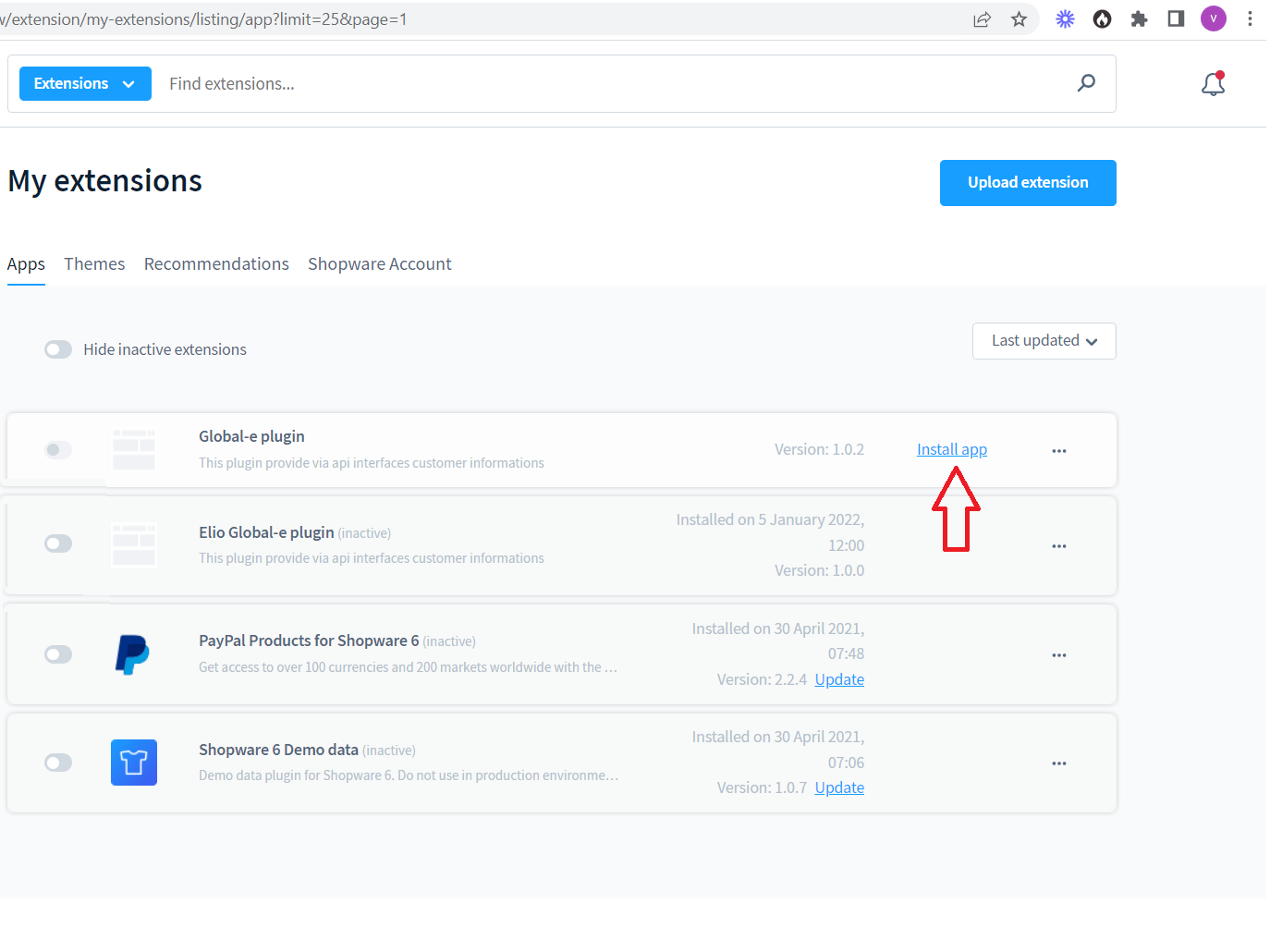
3. On the right side of the Global-e plugin click **Install app.**
The Global-e plugin is added to the My Extensions page.
3. On the right side of the Global-e plugin click **Install app.**
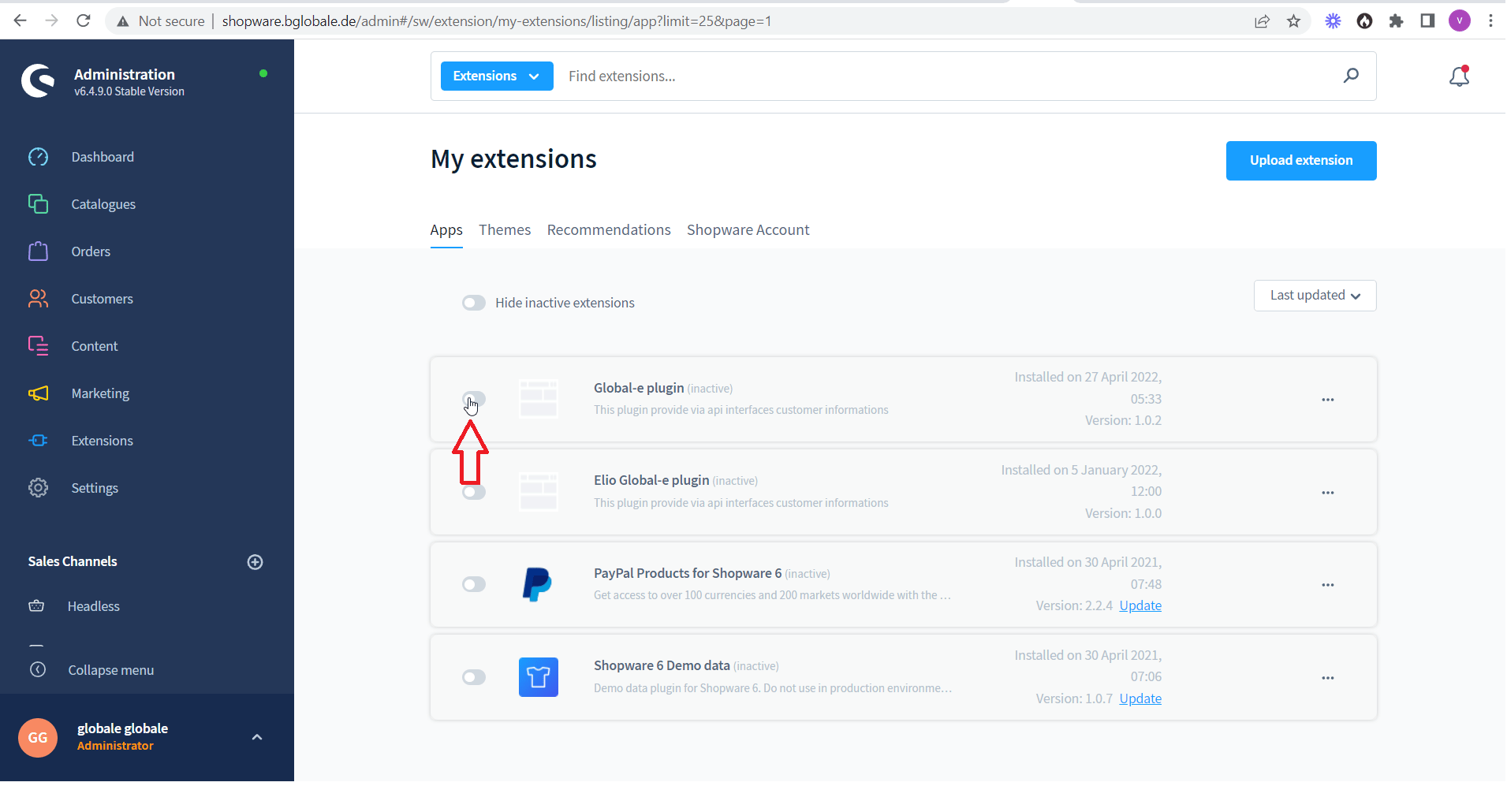
 4. Enable the Global-e plugin.
 ## Global‑e Shopware Plugin
* SendOrderToMerchant – to transfer new orders from Global‑e to Shopware
* PerformOrderPayment – to notify the merchant that payment was authorised
* UpdateOrderStatus – to notify the merchant of any change made to an order (e.g. cancellation, status change…)
* NotifyOrderRefund – to notify the merchant of a full order refund
## Global‑e Shopware Plugin
* SendOrderToMerchant – to transfer new orders from Global‑e to Shopware
* PerformOrderPayment – to notify the merchant that payment was authorised
* UpdateOrderStatus – to notify the merchant of any change made to an order (e.g. cancellation, status change…)
* NotifyOrderRefund – to notify the merchant of a full order refund
 In Shopware, the order is created as a standard Shopware order, following the native Shopware creation flow.