> ## Documentation Index
> Fetch the complete documentation index at: https://docs-pro.global-e.com/llms.txt
> Use this file to discover all available pages before exploring further.
# EU Product Identifiers
Part of the [EU Customs Reform - Product Identifiers (PID)](/eu-product-identifiers-pid).
On Centra, you store the two values on each variant using a Global-e custom attribute, and the Global-e integration maps them to `standardcode` and `mididentifier` at checkout. Your SKU is already sent separately, so there is no new SKU field to add. Do not use the US MID fields for EU PID.
For what each identifier is, see [The three identifiers](/eu-product-identifiers-pid#the-three-identifiers) on the overview page.
**What you need to do**
1. **Create the Global-e attribute type.** In Centra, go to **System**, then **Configuration**, click **Create attribute type**
 and add `ge_variant_data` (**Global-E Variant Information**) using the definition below.
```
{
"desc": "Global-E Variant Information",
"readonly": false,
"group": "variation",
"elements": {
"standard_code": {
"type": "input",
"desc": "Global-E Standard Code (GTIN/EAN/UPC)"
},
"mid_identifier": {
"type": "input",
"desc": "Global-E Manufacturer Product Code"
}
}
}
```
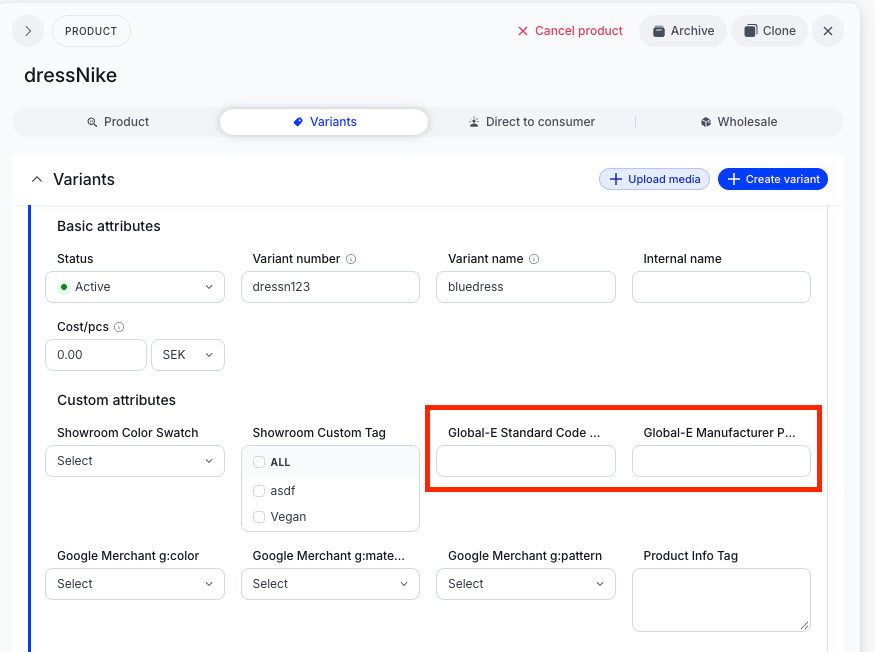
2. **Populate the values per variant.** Open the product, go to the **Variants** tab and click on the variant name, then **Custom attributes**. On each variant, fill **Global-E Standard Code** and/or **Global-E Manufacturer Product Code** when you have values to send.
and add `ge_variant_data` (**Global-E Variant Information**) using the definition below.
```
{
"desc": "Global-E Variant Information",
"readonly": false,
"group": "variation",
"elements": {
"standard_code": {
"type": "input",
"desc": "Global-E Standard Code (GTIN/EAN/UPC)"
},
"mid_identifier": {
"type": "input",
"desc": "Global-E Manufacturer Product Code"
}
}
}
```
2. **Populate the values per variant.** Open the product, go to the **Variants** tab and click on the variant name, then **Custom attributes**. On each variant, fill **Global-E Standard Code** and/or **Global-E Manufacturer Product Code** when you have values to send.
 3. **DTC merchants only:** go to **Platform**, then **Stores management**, then **Stores**,
 open your store, then **Plugins**, then **DTC API**, then **View**.
 Under **Display item attributes**, search `global-e variant` and select both **Global-E Standard Code** and **Global-E Manufacturer Product Code**
 then click **Save.**
 Checkout API merchants skip this step.
4. **Place a test order** and confirm the values appear when populated and are omitted when blank.
| Sent as | What it holds | When to leave it out |
| - | - | - |
| `standardcode` | The barcode for that variant (GTIN, EAN or UPC) | When the item has no barcode. Global-e declares the “no barcode” code automatically. |
| `mididentifier` | The manufacturer’s product code for that variant | Never. This is required on every line. |
Key points **One pair of values per variant.** Populate each variant that can appear in the cart. A value on the parent product alone is not enough when the variant has no value of its own.
**In Centra you see Global-E Standard Code and Global-E Manufacturer Product Code** under **Custom attributes**. The integration maps them to `standardcode` and `mididentifier` (lowercase) at checkout.
**The catalog setup is the same for DTC (GraphQL) and Checkout API.** DTC has one extra step: select both attributes under store, **DTC API**, **Display item attributes**, then **Save**.**Omit, don’t fake.** When a variant has no value, leave it blank. Never enter an empty placeholder such as NA, 0 or -.
**When values are read:** at checkout. Updated variant values apply on that SKU’s next checkout.
Quick check before go-live
| Check | Done |
| - | - |
| `ge_variant_data` attribute type created | ☐ |
| **Global-E Standard Code** and/or **Global-E Manufacturer Product Code** populated on each variant that needs them | ☐ |
| `standardcode` and `mididentifier` appear in SendCart when values exist | ☐ |
| Keys omitted (not empty) when a variant has no value | ☐ |
| Each variant in the cart sends its own pair | ☐ |
| DTC only: both **Display item attributes** selected under store, **DTC API**, **View**, and saved | ☐ |
Checkout API merchants skip this step.
4. **Place a test order** and confirm the values appear when populated and are omitted when blank.
| Sent as | What it holds | When to leave it out |
| - | - | - |
| `standardcode` | The barcode for that variant (GTIN, EAN or UPC) | When the item has no barcode. Global-e declares the “no barcode” code automatically. |
| `mididentifier` | The manufacturer’s product code for that variant | Never. This is required on every line. |
Key points **One pair of values per variant.** Populate each variant that can appear in the cart. A value on the parent product alone is not enough when the variant has no value of its own.
**In Centra you see Global-E Standard Code and Global-E Manufacturer Product Code** under **Custom attributes**. The integration maps them to `standardcode` and `mididentifier` (lowercase) at checkout.
**The catalog setup is the same for DTC (GraphQL) and Checkout API.** DTC has one extra step: select both attributes under store, **DTC API**, **Display item attributes**, then **Save**.**Omit, don’t fake.** When a variant has no value, leave it blank. Never enter an empty placeholder such as NA, 0 or -.
**When values are read:** at checkout. Updated variant values apply on that SKU’s next checkout.
Quick check before go-live
| Check | Done |
| - | - |
| `ge_variant_data` attribute type created | ☐ |
| **Global-E Standard Code** and/or **Global-E Manufacturer Product Code** populated on each variant that needs them | ☐ |
| `standardcode` and `mididentifier` appear in SendCart when values exist | ☐ |
| Keys omitted (not empty) when a variant has no value | ☐ |
| Each variant in the cart sends its own pair | ☐ |
| DTC only: both **Display item attributes** selected under store, **DTC API**, **View**, and saved | ☐ |